With most of my projects, I’ve noticed that before I can really begin to delve into them, I first have to learn something completely new.
I don’t do most of my work in Perl, but I can definitely make ends meet. My more recent work in Perl has dealt w/ RIP scanning and route-updating (a lot of DSL CPE tends to have RIP enabled). Packet creation isn’t that difficult, and using Perl I could bang out a script in a short period of time.
Usually for packet manipulation, I stay away from Perl – instead I’m a huge fan of Hping[23]. If you’re wanting to watch and play w/ the transport layer – an old laptop with hping and wireshark running is definitely the way to go. If you want to test MTU problems, or ACLs – Hping is fast and easy.
Hping is an amazing tool – one of my favorites. Hand crafted TCP and UDP traceroutes are easy as hell, and hand crafting TCP timestamp requests is easy too. Just read the manpages and you’ll find all sorts of interesting features of TCP/IP.
hping: Like a screwdriver set with most of the bits.
The downside to Hping is that it doesn’t seem to be under regular development (last release 2005?), and IPv6 isn’t supported yet (Aside from some basic third-party patches). Application layer creation is also left for other utilities to handle (But in all fairness – that’s not it’s job)
I was a late adopter, but about a year ago I made a new friend (and picked up some python along the way). My new best friend is Scapy. “Scapy is a powerful interactive packet manipulation program. It is able to forge or decode packets of a wide number of protocols, send them on the wire, capture them, match requests and replies, and much more.” It runs in interactive and script-able mode, and thus far it’s proven to be quite powerful. It also supports IPv6.
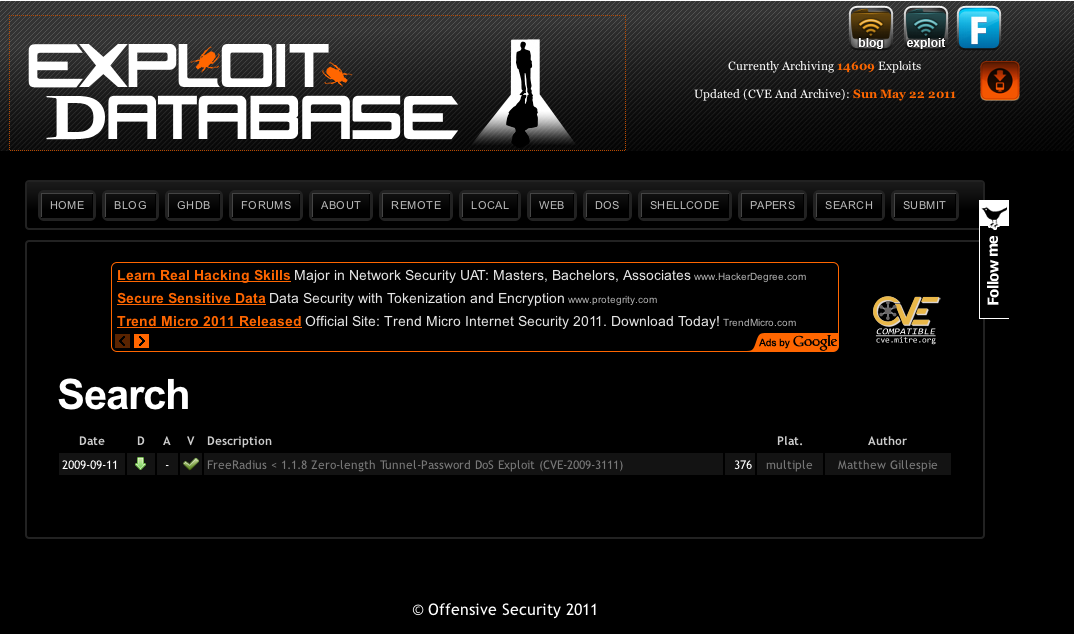
Scapy understands a large number of Application level protocols (SNMP, TFTP, SMB, etc, etc), and makes it easy for one to craft such packets. When I recently realized early versions of Cisco IP Router Export have corrupt headers – Scapy came to the rescue (albeit, only to rip the headers off, as fixing them wasn’t possible). When I wanted to craft a quick and easy FreeRadius Packet of Death – Scapy came to the rescue.
FreeRadius PoD on www.exploit-db.com
Another great thing about Scapy is that it’s easy to add “layers” (protocols). Recently I sat down with the RFC’s for OSPF and in about 2 days time had fully implemented OSPF in Scapy – learning a lot about the protocol along the way. (Dirk Loss had beat me and submitted it first, but that was besides the point).
Looking for a fun new world to poke, and tired of IPv4? Sign up for a 6-in-4 tunnel and go exploring. Just make sure you pack Scapy and a handy guide.
Recently I was asked to assist a co-worker find a good locked down Kiosk solution for a local coffee shop. The project requirement was small – mostly just a simple browser.
There seems to have been a LOT of Linux based Kiosk projects out there, most of them now deprecated. After a bit of searching, I came across a good one – WebConverger.
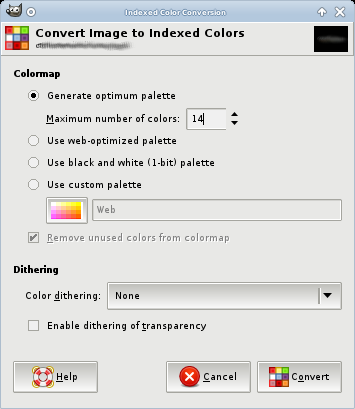
Now we can go about modifying these two directories. Changing out the ISOLINUX boot splash image is an easy start. The image found under /devel/isolinux/isolinux/splash.png is actually an LSS16 image. To replace it, take or create an image 640×480 in size, and convert it to 14 indexed colors. (In GIMP, these options are under Image/Index)
Next, you’ll need the syslinux package installed on your machine. The syslinux package includes a handy utility to convert PPM to LSS16 (for use as a bootsplash image)
#ppmtolss16 < /tmp/myimage-boot.ppm > splash.png
Since you’re already working on the ISOLINUX side of things, I recommend looking at and revising your boot menu. Once I have an image that I’m happy with, I set the following options to prevent someone from rebooting the Kiosk and tampering with boot parameters:
While you can nest a number of ISOLINUX boot configs together, I generally keep it to one file that includes the above directives. Dont’ forget to include at least one label for a kernel to boot.
After updating the Boot Splash screen, have a look at /devel/squashfs/home/webc/pb.sh. This script is what causes IceWeasel to start, restart if closed, and sets the desktop background image (amongst other things). This script also downloads a background image from your homepage at boot – which can come in handy if you want to rotate daily ads. I’ve personally modified my installation to always load the same background image, and fullscreen that image.
The webpage that appears each time IceWeasel starts is passed as kernel boot parameter (homepage). To update the homepage, simply edit the labels in the ISOLINUX directory.
You will notice that when pressing the home button in the browser however, that you’re actually taken to an about: page that gives details about the current IceWeasel build. To configure this homepage, look at /usr/lib/iceweasel/browserconfig.properties
Another thing that may prove beneficial is to remove any and all remnants of xterm. As xorg does depend upon xterm, it will have to be forceably removed. This is best done in a chroot environment
Once you have your modifications complete, you will want to re-squash the squash filesystem. To do this, you’ll need squashfs-tools version 4 (Centos is currently distributing version 3, so do keep that in mind). Squashing using version 3 of the tools will result in a non-bootable kiosk.
I highly recommend testing your ISO image in VirtualBox. Using VirtualBox (or any other virtualization option), saves you from constantly burning an image to a CD or USB drive. Be mindful that you can skip the isohybrid step and test with VirtualBox, although you won’t be able to install it later using dd.
Once you have an image that you’re happy with, use dd to copy the ISO onto the hard drive of your Kiosk machine. Personally, I copy my ISO to a USB thumbdrive running the Gentoo Based System Rescue CD, boot into it and then install onto the harddrive:
dd if =/livemnt/boot/kiosk/my-kiosk.iso of=/dev/sda
Of course, one could save time and simply use the WebConverger Customization Service… but why not use this as an opportunity to sharpen one’s skills.
Coming soon to – a walkthrough on how to build and customize a WebConverger ISO from Kai’s GIT repository (as opposed to re-rolling his ISO).